This Laravel jQuery POS role management tutorial covers how to implement user roles to restrict access and protect key features.
In a real-world POS environment, different users should have different access levels. For example, an Admin should be able to manage users, products, and reports, while a Cashier should only access the cart and make transactions.
In this post, you’ll learn how to:
- Create and assign roles to users
- Protect routes using middleware
- Display or hide UI elements based on roles
- Separate features for admins and cashiers
By the end of this guide, your Laravel POS with jQuery app will have a secure and organized user permission system.
Table of Contents
Step 1: Create Role Middleware
php artisan make:middleware RoleMiddlewareThen update the middleware app/Http/Middleware/RoleMiddleware.php:
<?php

namespace App\Http\Middleware;

use Closure;
use Illuminate\Http\Request;
use Symfony\Component\HttpFoundation\Response;

class RoleMiddleware
{
    /**
     * Handle an incoming request.
     *
     * @param  \Closure(\Illuminate\Http\Request): (\Symfony\Component\HttpFoundation\Response)  $next
     */
    public function handle(Request $request, Closure $next, ...$roles): Response
    {
        $user = $request->user();
        if (!$user || !in_array($user->role, $roles)) {
            return match ($user->role) {
                'superadmin' => redirect('/'),
                'admin' => redirect('/'),
                'cashier' => redirect('/cashier'),
                default => abort(403),
            };
        }

        return $next($request);
    }
}
Register it in bootstrap/app.php:
use App\Http\Middleware\RoleMiddleware;
// ...
->withMiddleware(function (Middleware $middleware): void {
    $middleware->alias([
        'role' => RoleMiddleware::class
    ]);
})
If you’re new to middleware or want a deeper understanding of how it works in Laravel, check out the official Laravel documentation:
🔗 Laravel Middleware Documentation
This guide provides in-depth details on how middleware handles request filtering and route protection in Laravel applications.
Step 2: Protect the Routes
Apply the middleware to routes you want to protect:
Replace the contents of routes/web.php with the code below.
<?php
// Laravel POS With jQuery @ https://laravelcenter.com
use App\Http\Controllers\BalanceAdjustmentController;
use App\Http\Controllers\CashierController;
use App\Http\Controllers\DashboardController;
use App\Http\Controllers\ProductCategoryController;
use App\Http\Controllers\ProductController;
use App\Http\Controllers\TableController;
use App\Http\Controllers\UserController;
use Illuminate\Support\Facades\Route;

Route::middleware('guest')->match(['get', 'post'], '/login', [UserController::class, 'login'])->name('login');

Route::middleware('auth')->group(function () {
    Route::post('/user/logout', [UserController::class, 'logout']);
    Route::match(['get', 'post'], '/user/change-password', [UserController::class, 'changePassword']);

    Route::middleware('role:superadmin,admin')->group(function () {
        Route::view('/', 'layout.admin');
        Route::get('dashboard', DashboardController::class);
        Route::prefix('user')->controller(UserController::class)->group(function () {
            Route::get('/', 'index');
            Route::get('form/{id?}', 'form');
            Route::match(['post', 'put'], 'submit', 'submit');
            Route::delete('delete', 'delete');
        });

        // Table
        Route::prefix('table')->controller(TableController::class)->group(function () {
            Route::get('/', 'index');
            Route::get('form/{id?}',  'form');
            Route::match(['post', 'put'], 'submit', 'submit');
            Route::delete('delete', 'delete');
        });

        // Product
        Route::prefix('product')->controller(ProductController::class)->group(function () {
            Route::get('/', 'index');
            Route::get('form/{id?}',  'form');
            Route::match(['post', 'put'], 'submit', 'submit');
            Route::delete('delete', 'delete');
        });

        // Product Category
        Route::prefix('product-category')->controller(ProductCategoryController::class)->group(function () {
            Route::get('/', 'index');
            Route::get('form/{id?}',  'form');
            Route::match(['post', 'put'], 'submit', 'submit');
            Route::delete('delete', 'delete');
        });

        // Balance Adjustment
        Route::prefix('balance-adjustment')->controller(BalanceAdjustmentController::class)->group(function () {
            Route::get('/', 'index');
            Route::get('form/{id?}',  'form');
            Route::match(['post', 'put'], 'submit', 'submit');
            Route::delete('delete', 'delete');
        });
    });
    Route::middleware('role:cashier')->prefix('cashier')->controller(CashierController::class)->group(function () {
        // Cashier
        Route::get('/', 'index');
        Route::get('product/{category}', 'product');
        Route::get('table/{id}',  'table');
        Route::post('select-table', 'selectTable');
        Route::post('update-order-qty', 'updateOrderQty');
        Route::post('update-detail-discount', 'updateDetailDiscount');
        Route::delete('delete-order-product', 'deleteOrderProduct');
        Route::post('update-discount', 'updateDiscount');
        Route::post('add-to-order', 'addToOrder');
        Route::post('print-invoice', 'printInvoice');
        Route::match(['post', 'get'], 'make-payment', 'makePayment');
    });
});

Route::fallback(function () {
    return view('404');
});
Now, only admins can access admin routes and only cashiers can access POS routes.
Step 3: Running and Testing Your Project
Open your Terminal/CMD in separate windows, go to the project’s root folder, and then run the command below:
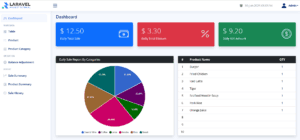
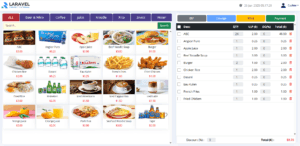
npm run devphp artisan serveWith both commands running in their separate windows, open your web browser to the Laravel address (http://127.0.0.1:8000).
Step 4: Test the Role-Based Access
To verify that your role-based route protection is working correctly in your Laravel POS with jQuery project, follow this simple test:
- Log in as a Cashier (a user with the role
cashier). - Manually try to access an admin-only route, such as: /table, /user, /product
- You should redirect back to the cashier page, confirming that the route is protected and the access control is working as expected.
✅ This test ensures your middleware is correctly blocking unauthorized users from accessing restricted areas.
Role-Based Access Setup Complete
Awesome job! 🎉 You’ve now implemented role-based access control in your Laravel POS with jQuery system—giving you full control over what Admins and Cashiers can see and do. With roles, middleware, and conditional UI in place, your POS app is now more secure, structured, and production-ready.
In the next tutorial, we’ll move on to generating powerful reports and filtering sales data by date, user, or status. This will help admins monitor business performance and analyze key metrics directly from the dashboard.
👉 Continue to Part 7: Generate Reports and Filter Sales Data
Laravel jQuery POS Tutorial for Beginners Series
This step-by-step series will guide you through building a complete Laravel jQuery POS system from scratch:
- Part 1: Install Laravel and Required Packages
Set up Laravel 12.x, jQuery, Bootstrap, and essential dependencies to get your project started. - Part 2: Integrate NiceAdmin Template into Laravel
Design a clean and responsive UI using the NiceAdmin Bootstrap template. - Part 3: Data Migration and Authentication
Implement user login, logout, and role-based access control. - Part 4: Ajax Menu Navigation and System Data (CRUD)
Create smooth navigation and manage key POS data with simple Ajax-based CRUD features. - Part 5: Build the POS Cart System with jQuery
Add products to cart, adjust quantities, and calculate totals with jQuery. - Part 6: Role-Based Access – Admin vs. Cashier
Create middleware to manage access between different user roles. - Part 7: Generate Reports and Filter Sales Data
Show daily sales, filter by date, and export reports using xlsx-populate. - Part 8: Create Graph Reports with ApexCharts
Visualize sales performance using beautiful charts on the dashboard.