This Laravel jQuery POS installation guide walks you through installing Laravel and essential packages. Let’s set up your project in just a few quick steps.
In this step, we’ll begin by setting up the development environment. You’ll learn how to install Laravel, jQuery, and other essential packages required to build a fully functional Laravel jQuery POS. This will lay the groundwork for the entire POS system we’ll create throughout the series.
You can follow along using any operating system—whether it’s Windows, Linux, Ubuntu, or macOS. You’re also free to choose any local development stack such as XAMPP, WAMP, or LAMP. For this tutorial, we’ll be using WAMP Server on Windows because it’s easy to configure and beginner-friendly.
By the end of this part, you’ll have a Laravel app set up with the necessary frontend libraries and tools—ready to move on to the next stage of your Laravel jQuery POS project.
Table of Contents
Step 1: Install Laravel Framework 12.x on Windows
The first step in this Laravel jQuery POS installation guide is to install the Laravel 12 framework on your Windows system.
You can learn how to install it from the official Laravel docs, check out our earlier tutorial How to Install Laravel Framework 12.x on Windows, or just follow the step-by-step instructions below.
For this tutorial, we’ll assume that you already have Composer and Node.js installed, and you’re running WampServer on port 80. Your Laravel project is located in D:\www, and the project folder is named laravel-jquery-pos.
Open the Command Prompt (CMD), navigate to your project root directory, and run the following command:
composer global require laravel/installer
laravel new laravel-jquery-pos


This will download and set up the latest Laravel framework required for your POS project. Make sure PHP, Composer, and WAMP are correctly installed before continuing with the Laravel jQuery POS installation guide.
Step 2: Setup Database Connection
Once Laravel is installed, the next step in this Laravel jQuery POS installation guide is to configure your database connection.
Open the .env file in your Laravel project and update the database name, username, and password to match your MySQL setup:

Then create the database manually or with your preferred GUI.
Update this file app/Providers/AppServiceProvider.php follow the screenshot below to avoid database migration issues.

Open the Command Prompt (CMD), navigate to your project root directory, and run the following command:
php artisan migrate:fresh
Properly setting up your database ensures that your Laravel jQuery POS system can store and manage sales, products, and users efficiently.
Following this step is crucial for a smooth Laravel jQuery POS installation experience.
Step 3: Install Required Packages
As these libraries are required for our project, please proceed with installing them
- Bootstrap 5 – For building responsive and modern UI
- Bootstrap Icons – For clean and lightweight icons
- jQuery – For DOM interaction and Ajax functionality
- xlsx-populate – To export sales reports to Excel
- print-js – To print receipts and invoices
- flatpickr – A modern, user-friendly date picker
- apexcharts – For visualizing sales reports
npm install apexcharts bootstrap bootstrap-icons flatpickr jquery print-js xlsx-populateRunning and Testing Your Project
Open your Terminal/CMD in separate windows, go to the project’s root folder, and then run the command below:
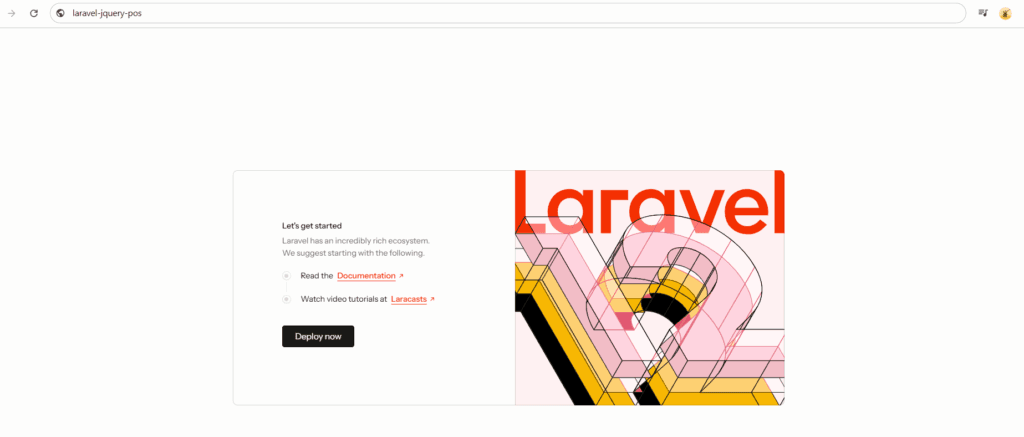
npm run devphp artisan serveWith both commands running in their separate windows, open your web browser to the Laravel address (http://127.0.0.1:8000).
Installation Complete
Congratulations! You’ve successfully completed the Laravel jQuery POS installation guide. At this point, you’ve successfully installed Laravel 12.x, configured your environment, and added all the essential packages needed for the project.
In the next tutorial, we’ll move on to designing the layout using the NiceAdmin Bootstrap template. You’ll learn how to structure your views, set up reusable components, and start giving your POS system a clean, professional UI.
👉 Continue to Part 2: Integrate NiceAdmin Template into Laravel
Laravel jQuery POS Tutorial for Beginners Series
This step-by-step series will guide you through building a complete Laravel jQuery POS system from scratch:
- Part 1: Install Laravel and Required Packages
Set up Laravel 12.x, jQuery, Bootstrap, and essential dependencies to get your project started. - Part 2: Integrate NiceAdmin Template into Laravel
Design a clean and responsive UI using the NiceAdmin Bootstrap template. - Part 3: Data Migration and Authentication
Implement user login, logout, and role-based access control. - Part 4: Ajax Menu Navigation and System Data (CRUD)
Create smooth navigation and manage key POS data with simple Ajax-based CRUD features. - Part 5: Build the POS Cart System with jQuery
Add products to cart, adjust quantities, and calculate totals with jQuery. - Part 6: Role-Based Access – Admin vs. Cashier
Create middleware to manage access between different user roles. - Part 7: Generate Reports and Filter Sales Data
Show daily sales, filter by date, and export reports using xlsx-populate. - Part 8: Create Graph Reports with ApexCharts
Visualize sales performance using beautiful charts on the dashboard.