Securing your user authentication system is essential for any modern web application. In this guide, we’ll show you how to implement a Laravel Vue.js authentication with Google 2FA system that adds an extra layer of protection using time-based one-time passwords (TOTP).
You’ll learn how to integrate Google Two-Factor Authentication (2FA) into both your Laravel backend and Vue.js frontend, ensuring that only verified users can log in — even if their password is compromised.
This tutorial also builds upon the foundation from our previous guide, Laravel 12 Vue 3 Session Based Authentication – Complete SPA Tutorial for Beginners, extending it with robust account protection using Google Authenticator for enhanced login security.
Table of Contents
Step 1: Check Out the Previous Tutorial First
Before starting this guide, make sure you’ve already completed the setup from the previous post: Laravel 12 Vue 3 Session Based Authentication – Complete SPA Tutorial for Beginners.
👉 This tutorial builds on top of that project structure, so having it ready will help you continue smoothly.
You can read it here: https://laravelcenter.com/laravel-12-vue-3-session-based-authentication/
Step 2: Install Google 2FA Package
Begin your Laravel Vue.js authentication with Google 2FA setup by installing the required package to generate and verify time-based one-time passwords (TOTP).
We’ll use the official and well-maintained package pragmarx/google2fa to generate secret keys and verify codes.
Run this command in your Laravel project root:
composer require pragmarx/google2faThis package handles all the core logic for generating and verifying time-based one-time passwords (TOTP).
Step 3: Add 2FA Fields to Users Table
Enhance your Laravel Vue.js authentication with Google 2FA by adding database fields to store each user’s secret key and enable or disable two-factor authentication.
Create a migration file:
php artisan make:migration add_two_factor_columns_to_users_tableThen open the generated migration and add:
public function up()
{
    Schema::table('users', function (Blueprint $table) {
        $table->string('google2fa_secret')->nullable();
        $table->boolean('is_2fa_enabled')->default(false);
    });
}
Run migration:
php artisan migrateStep 4: Generate 2FA Secret and QR Code
In this step of Laravel Vue.js authentication with Google 2FA, you’ll create a unique secret for each user and generate a QR code for Google Authenticator setup.
Edit API controller file app/Http/Controllers/Api/AuthController.php, modify the login method:
// Laravel Vue.js authentication with Google 2FA
use PragmaRX\Google2FA\Google2FA;
use BaconQrCode\Renderer\Image\SvgImageBackEnd;
use BaconQrCode\Renderer\ImageRenderer;
use BaconQrCode\Renderer\RendererStyle\RendererStyle;
use BaconQrCode\Writer;

// Login
public function login(Request $request)
{
    // Verify 2FA
    if ($request->require_otp) {
        $rules = [
            'otp' => 'required'
        ];

        $validator = Validator::make($request->all(), $rules);
        if ($validator->fails())
            return response()->json([
                'success' => false,
                'errors' => $validator->errors()
            ]);

        // Verify 2FA OTP code
        $google2fa = new Google2FA();
        $user = User::where('email', $request->email)->first();

        if ($user->google2fa_secret)
            $secret = $user->google2fa_secret;
        else
            $secret = $request->secret;

        if (!$google2fa->verifyKey($secret, $request->otp)) {
            return response()->json([
                'success' => false,
                'errors' => [
                    'otp' => ['Invalid 2FA code']
                ]
            ]);
        }

        // save secret key to user
        if (!$user->google2fa_secret) {
            $user->google2fa_secret = $secret;
            $user->save();
        }
    }
    // Login
    else {
        $rules = [
            'email' => 'required|email',
            'password' => 'required',
        ];

        $validator = Validator::make($request->all(), $rules);
        if ($validator->fails())
            return response()->json([
                'success' => false,
                'errors' => $validator->errors()
            ]);

        $user = User::where('email', $request->email)->first();

        if (!$user || !Hash::check($request->password, $user->password)) {
            return response()->json(
                [
                    'success' => false,
                    'errors' => [
                        'email' => ['Incorrect email or password']
                    ]
                ]
            );
        }

        // check 2FA
        if ($user->is_2fa_enabled) {
            $google2fa = new Google2FA();
            $qrCodeSvg = '';
            $secretKey = '';

            if (!$user->google2fa_secret) {
                // generate a secret key for this user
                $secretKey = $google2fa->generateSecretKey();
                // Create QR Code (SVG)
                $renderer = new ImageRenderer(
                    new RendererStyle(200),
                    new SvgImageBackEnd()
                );
                $writer = new Writer($renderer);

                $qrCodeUrl = $google2fa->getQRCodeUrl(
                    config('app.name'),
                    $user->email,
                    $secretKey
                );

                $qrCodeSvg = $writer->writeString($qrCodeUrl);
            }

            return response()->json(
                [
                    'success' => false,
                    'require_otp' => true,
                    'email' => $user->email,
                    'qrcode' => $qrCodeSvg,
                    'secret' => $secretKey
                ]
            );
        }
    }

    Auth::login($user);

    return response()->json([
        'success' => true,
        'user' => $user->only('id', 'name', 'email'),
    ]);
}
You can use
bacon/bacon-qr-codeto generate QR codes easily.
Install it:
composer require bacon/bacon-qr-codeStep 5: Display 2FA QR Code In Vue.js Login Component
Integrate the generated QR code into your Vue.js component so users can easily scan it during their Laravel Vue.js authentication with Google 2FA setup process.
resources/js/Pages/Login.vue
<template>
    <section class="vh-100">
        <div class="container py-5 h-100">
            <div class="row d-flex justify-content-center align-items-center h-100">
                <div class="col-12 col-md-8 col-lg-6 col-xl-5">
                    <div class="card shadow-2-strong" style="border-radius: 1rem; background: lightsteelblue;">
                        <div class="card-body p-5" v-if="!form.require_otp">
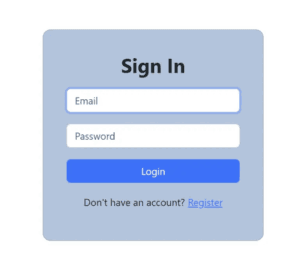
                            <h1 class="mb-4 text-center fw-bold">Sign In</h1>
                            <form @submit.prevent="login">
                                <div class="form-outline mb-4">
                                    <input type="text"
                                        :class="['form-control form-control-lg', { 'is-invalid': errors?.email }]"
                                        placeholder="Email" ref="autofocus" v-model="form.email"
                                        :disabled="processing" />
                                    <span v-if="errors?.email" class="text-danger form-label" style="padding-left: 5px">
                                        {{ errors?.email[0] }}
                                    </span>
                                </div>
                                <div class="form-outline mb-4">
                                    <input type="password"
                                        :class="['form-control form-control-lg', { 'is-invalid': errors?.password }]"
                                        placeholder="Password" v-model="form.password" :disabled="processing" />
                                    <span v-if="errors?.password" class="text-danger form-label"
                                        style="padding-left: 5px">
                                        {{ errors?.password[0] }}
                                    </span>
                                </div>
                                <div class="d-grid mb-2">
                                    <button class="btn btn-primary btn-lg" type="submit" :disabled="processing">
                                        <span v-show="processing" class="spinner-border spinner-border-sm" role="status"
                                            aria-hidden="true"></span>
                                        Login
                                    </button>
                                </div>
                            </form>
                            <div class="py-3 text-center fs-5">
                                Don't have an account? <RouterLink :to="{ path: '/register' }">Register</RouterLink>
                            </div>
                        </div>
                        <div class="card-body p-5" v-else>
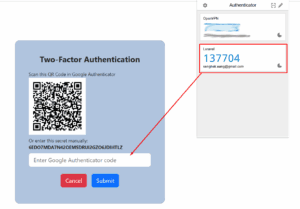
                            <h3 class="mb-4 text-center fw-bold">Two-Factor Authentication</h3>
                            <div v-if="form.secret">
                                <p class="mb-0">Scan this QR Code in Google Authenticator</p>
                                <div v-html="qrcode_2fa"></div>
                                <p class="my-2">Or enter this secret manually: <b>{{ form.secret }}</b></p>
                            </div>
                            <form @submit.prevent="login">
                                <div class="form-outline mb-4">
                                    <input type="text" class="form-control form-control-lg"
                                        placeholder="Enter Google Authenticator code" v-model="form.otp"
                                        ref="autofocus" />
                                    <span v-if="errors?.otp" class="text-danger" style="padding-left: 5px">
                                        {{ errors?.otp[0] }}
                                    </span>
                                </div>
                                <div class="mb-2 text-center">
                                    <button class="btn btn-danger btn-lg mx-2" type="button" :disabled="processing"
                                        @click="remove2FALocalStorage">
                                        Cancel
                                    </button>
                                    <button class="btn btn-primary btn-lg mx-2" type="submit" :disabled="processing">
                                        Submit
                                    </button>
                                </div>
                            </form>
                        </div>
                    </div>
                </div>
            </div>
        </div>
    </section>
</template>

<script setup>
import { onMounted, ref } from "vue";
import { RouterLink, useRouter } from "vue-router";
import { useAuthStore } from "@/stores/auth";

const qrcode_2fa = ref(localStorage.getItem("qrcode"));
const processing = ref(false);
const form = ref({
    email: localStorage.getItem("email"),
    secret: localStorage.getItem("secret"),
    require_otp: localStorage.getItem("require_otp"),
    password: null,
    otp: null,
});
const errors = ref(null);
const router = useRouter();
const autofocus = ref(null);

const login = async () => {
    processing.value = true;
    const auth = useAuthStore();
    const response = await auth.login(form.value);
    if (response.data.success) {
        remove2FALocalStorage();
        router.push('/');
    }
    else if (response.data.require_otp) {
        localStorage.setItem("require_otp", response.data.require_otp);
        localStorage.setItem("email", response.data.email);
        localStorage.setItem("qrcode", response.data.qrcode);
        localStorage.setItem("secret", response.data.secret);
        form.value.require_otp = response.data.require_otp;
        form.value.secret = response.data.secret;
        qrcode_2fa.value = response.data.qrcode;
        setTimeout(() => {
            autofocus.value.focus();
            autofocus.value.select();
        }, 5);
    }
    else {
        errors.value = response.data.errors;
        setTimeout(() => {
            autofocus.value.focus();
            autofocus.value.select();
        }, 5);
    }
    processing.value = false;
}

const remove2FALocalStorage = () => {
    localStorage.removeItem('require_otp');
    localStorage.removeItem('email');
    localStorage.removeItem('qrcode');
    localStorage.removeItem('secret');
    form.value.require_otp = "";
    form.value.secret = "";
    qrcode_2fa.value = "";
}

onMounted(() => {
    autofocus.value.focus();
});
</script>
Final Step: Running and Testing Your Project
To test your project, run the Laravel server:
php artisan serveIf your project also uses Vue.js, run the frontend in a separate terminal:
npm run devAfter both are running, open your browser and visit:
http://127.0.0.1:8000Make sure all pages load and your features work as expected.
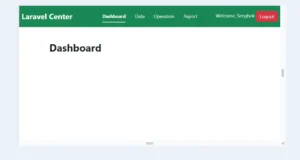
Verify that your Laravel Vue.js authentication with Google 2FA is working by scanning the QR code, entering the OTP, and confirming successful login protection.
- Log in to your app.
- Go to your 2FA setup page.
- Generate a QR code and scan it with Google Authenticator.
- Verify and enable 2FA.
- Logout and try logging in again — you’ll now be asked to enter a 2FA code.
Conclusion
By completing these steps, you’ve built a secure Laravel Vue.js authentication with Google 2FA system that protects user accounts with powerful two-factor verification.
Now your users can:
- Scan QR codes using Google Authenticator
- Generate time-based OTP codes
- Verify 2FA during login
This feature significantly improves your application’s protection against unauthorized access and password leaks.
If you’re building a production-ready Laravel Vue.js app, adding Google 2FA authentication is one of the best ways to enhance security and user trust.