Creating a solid development environment is an important part of building modern applications. In this tutorial, you will learn how to set up a complete Laravel Vue SPA docker setup from scratch. This guide focuses only on preparing Docker to run your existing Laravel Vue.js SPA. We will not cover how to build the SPA itself; instead, you’ll learn how to containerize it using Docker, Dockerfile, and Docker Compose.
If you haven’t created your Laravel Vue.js SPA yet, please check our previous tutorial: Laravel 12 Vue 3 Session Based Authentication – Complete SPA Tutorial for Beginners before continuing.
Table of Contents
Step 1: Install Docker on Your Operating System
Before running your Laravel application in Docker, you must install Docker Desktop on your machine. Docker provides installers for all major operating systems. Follow the instructions below based on your OS.
🔹 Windows
- Go to the official Docker download page.
- Download Docker Desktop for Windows.
- Make sure your system meets requirements:
- Windows 10/11 (64-bit)
- WSL 2 enabled
- Run the installer and follow the setup wizard.
- After installation, restart your computer if prompted.
- Open Docker Desktop → ensure it shows “Running” at the bottom.
🔹 macOS
- Visit the Docker download page.
- Download Docker Desktop for Mac (choose Intel or Apple Silicon version).
- Drag the Docker icon into your Applications folder.
- Open Docker Desktop and allow required permissions.
- Wait until the status changes to “Docker is running”.
🔹 Linux (Ubuntu Example)
Open your terminal and run the following:
sudo apt update
sudo apt install ca-certificates curl gnupg lsb-release
Add Docker’s official GPG key:
sudo install -m 0755 -d /etc/apt/keyrings
curl -fsSL https://download.docker.com/linux/ubuntu/gpg | sudo gpg --dearmor -o /etc/apt/keyrings/docker.gpg
sudo chmod a+r /etc/apt/keyrings/docker.gpg
Set up the stable repository:
echo \
  "deb [arch=$(dpkg --print-architecture) signed-by=/etc/apt/keyrings/docker.gpg] \
  https://download.docker.com/linux/ubuntu \
  $(lsb_release -cs) stable" | \
  sudo tee /etc/apt/sources.list.d/docker.list > /dev/null
Install Docker packages:
sudo apt update
sudo apt install docker-ce docker-ce-cli containerd.io docker-buildx-plugin docker-compose-plugin
Verify installation:
docker --version
docker compose version
Now that Docker is installed and running on your system, you can continue with the next steps to set up your Laravel Vue SPA Docker environment.
Step 2: Create Your Project Folder Structure for Docker
Start your Laravel Vue SPA Docker Setup by organizing a clean folder structure. This ensures Docker can correctly separate PHP, Nginx, and configuration files while keeping your Laravel Vue.js SPA easy to manage.
Inside your project root, create the following structure:
/docker
    /php
        Dockerfile
    /nginx
        default.conf
docker-compose.yml
Your Laravel + Vue.js SPA project (Laravel backend + Vite SPA frontend) should live in the root directory.
Step 3: Create PHP Dockerfile
In this step, you will create a PHP Dockerfile that defines the environment required to run Laravel. This file installs PHP extensions, configures PHP-FPM, and prepares the base container for your Laravel Vue SPA Docker Setup.
Create: /docker/php/Dockerfile
# Use a slim PHP-FPM image with necessary extensions
FROM php:8.3-fpm-alpine

# Install necessary system dependencies and PHP extensions
RUN apk update && apk add \
    git \
    curl \
    libxml2-dev \
    libzip-dev \
    # ⚠️ ADD these two lines for the MySQL driver:
    mysql-client \
    mariadb-connector-c-dev \
    # ---------------------------------------------
    # ... other needed dependencies
    && rm -rf /var/cache/apk/*

# Install the PHP extension using the helper script
RUN docker-php-ext-install pdo_mysql

# Install Composer
COPY --from=composer:latest /usr/bin/composer /usr/bin/composer

# Set working directory inside the container
WORKDIR /var/www/html

# Copy the application source code
COPY . .

# Install PHP dependencies (Laravel)
RUN composer install --no-dev --optimize-autoloader
RUN php artisan config:cache
RUN php artisan route:cache
RUN php artisan view:cache

# Recommended: Fix file permissions for www-data user
RUN chown -R www-data:www-data /var/www/html

# Expose port (this is the FPM port, not the web port)
EXPOSE 9000

# Start PHP-FPM
CMD ["php-fpm"]
Step 4: Create Nginx Config
Next, create an Nginx configuration file to serve both your Laravel backend and Vue.js SPA. This ensures fast routing, proper handling of SPA URLs, and smooth integration inside your Docker setup.
Create: /docker/nginx/default.conf
server {
    listen 80;
    server_name localhost;

    root /var/www/html/public;
    index index.php index.html;

    location / {
        try_files $uri $uri/ /index.php?$query_string;
    }

    location ~ \.php$ {
        include fastcgi_params;
        fastcgi_pass app:9000;   # must match your PHP container + expose
        fastcgi_index index.php;
        fastcgi_param SCRIPT_FILENAME $document_root$fastcgi_script_name;
    }
}
Step 5: Create docker-compose.yml
The docker-compose.yml file ties everything together. It defines your app, Nginx, database, and any optional services in one place—making your Laravel Vue SPA Docker Setup simple to run with a single command.
Create: docker-compose.yml
services:
    # -----------------------------------------------------
    # PHP-FPM (Laravel Backend)
    # -----------------------------------------------------
    app:
        build:
            context: .
            dockerfile: docker/php/Dockerfile
        container_name: laravel-vue-spa-docker-app
        volumes:
            - ./:/var/www/html
            - vendor_volume:/var/www/html/vendor
            - node_volume:/var/www/html/node_modules
        networks:
            - eth0

    # -----------------------------------------------------
    # Nginx (Web Server)
    # -----------------------------------------------------
    nginx:
        image: nginx:alpine
        container_name: laravel-vue-spa-docker-nginx
        ports:
            - "8001:80"
        volumes:
            - ./:/var/www/html:cached
            - ./docker/nginx/default.conf:/etc/nginx/conf.d/default.conf:delegated
        depends_on:
            - app
        networks:
            - eth0

    # -----------------------------------------------------
    # MySQL (Database)
    # -----------------------------------------------------
    mysql:
        image: mysql:8.0
        container_name: laravel-vue-spa-docker-mysql
        restart: unless-stopped
        environment:
            MYSQL_ROOT_PASSWORD: '${DB_PASSWORD}'
            MYSQL_DATABASE: '${DB_DATABASE}'
            MYSQL_USER: '${DB_USERNAME}'
            MYSQL_PASSWORD: '${DB_PASSWORD}'
        ports:
            - "33061:3306"
        volumes:
            - mysql_data:/var/lib/mysql
        networks:
            - eth0

    # -----------------------------------------------------
    # phpMyAdmin (Database Web UI)
    # -----------------------------------------------------
    phpmyadmin:
        image: phpmyadmin/phpmyadmin:latest
        container_name: laravel-vue-spa-docker-phpmyadmin
        restart: unless-stopped
        environment:
            PMA_HOST: mysql
            PMA_USER: root
            PMA_PASSWORD: '${DB_PASSWORD}'
        ports:
            - "9001:80"
        depends_on:
            - mysql
        networks:
            - eth0

    # -----------------------------------------------------
    # Redis (optional)
    # -----------------------------------------------------
    redis:
        image: redis:alpine
        container_name: laravel-vue-spa-docker-redis
        ports:
            - "6379:6379"
        networks:
            - eth0

# -------------------------------------------------------
# Networks & Volumes
# -------------------------------------------------------
networks:
    eth0:
        driver: bridge

volumes:
    mysql_data:
    vendor_volume:
    node_volume:
This setup includes:
- app → Laravel (PHP-FPM)
- web → Nginx server
- node → Vite for Vue.js SPA
Step 6: Start Docker and Configure Laravel
Once all files are ready, start Docker and initialize your Laravel project. Install dependencies, set permissions, and update environment variables so your Laravel Vue.js SPA runs properly inside Docker.
Run Docker:
docker compose up -dInstall composer dependencies:
docker compose exec app composer installGenerate key:
docker compose exec app php artisan key:generateInstall npm dependencies:
npm run devSince our Vue.js SPA is part of the same project directory as Laravel, there’s no need to run NPM commands inside the Docker container. You can install all NPM dependencies directly on your local machine, and Docker will automatically use them because the project folder is mounted into the container.
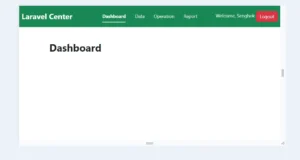
Now your app is ready.
Access URL:
http://localhost:8001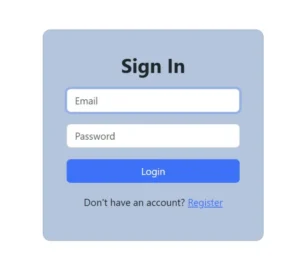
Common Docker Commands You Should Know
Learn essential Docker and Docker Compose commands used to start, stop, rebuild, and inspect your containers. These commands help you manage your Laravel Vue SPA Docker Setup efficiently during development.
Docker Compose Commands
| Action | Command | Notes |
|---|---|---|
| Start services | docker compose up -d | Starts containers in detached mode |
| Start & rebuild services | docker compose up -d --build | Rebuilds images before starting |
| Build images without starting | docker compose build | Only builds images, does not run containers |
| Stop services | docker compose down | Stops and removes containers, networks |
| Stop & remove everything (including volumes) | docker compose down -v | Use with caution — deletes all volumes! |
| View running containers from compose | docker compose ps | Shows status of containers |
| Restart services | docker compose restart | Restart all services in docker-compose.yml |
Docker Prune Commands
| Action | Command | Notes |
|---|---|---|
| Prune unused Docker objects (safe) | docker system prune | Removes stopped containers, unused networks, and dangling images |
| Full prune including unused images | docker system prune -a | Also deletes unused images (not only dangling) |
| Force prune without confirmation | docker system prune -f | Skips confirmation prompt |
| Full prune + force | docker system prune -a -f | Automatically cleans everything unused |
| Prune dangling images | docker image prune | Removes untagged (dangling) images only |
| Prune unused images | docker image prune -a | Deletes all unused images |
| Prune stopped containers | docker container prune | Removes containers not running |
| Prune unused volumes | docker volume prune | Be careful — removes orphan volumes |
| Prune unused networks | docker network prune | Deletes unused networks |
Conclusion
By following these steps, you now have a fully functional Laravel Vue SPA Docker Setup that runs your entire project inside lightweight, isolated containers. This approach ensures stable environments, easy deployment, and faster development.
For more details about Docker, visit the official site:
👉 https://www.docker.com/